Your project saves in this browser when saving is available. Check the saving status and keep a download for your own copy.
Film & Time
Give a moment a little more time.
The repairer · Completed example
Explore the repairer’s completed film plan
Move between the six parts to see how each choice supports the story. The completed fields are read-only.
The parcel with no return address
Your film plan in six parts
1. Open on the change
Begin with the picture the first words need.
From Pictures & Sequences and Sound & Voice
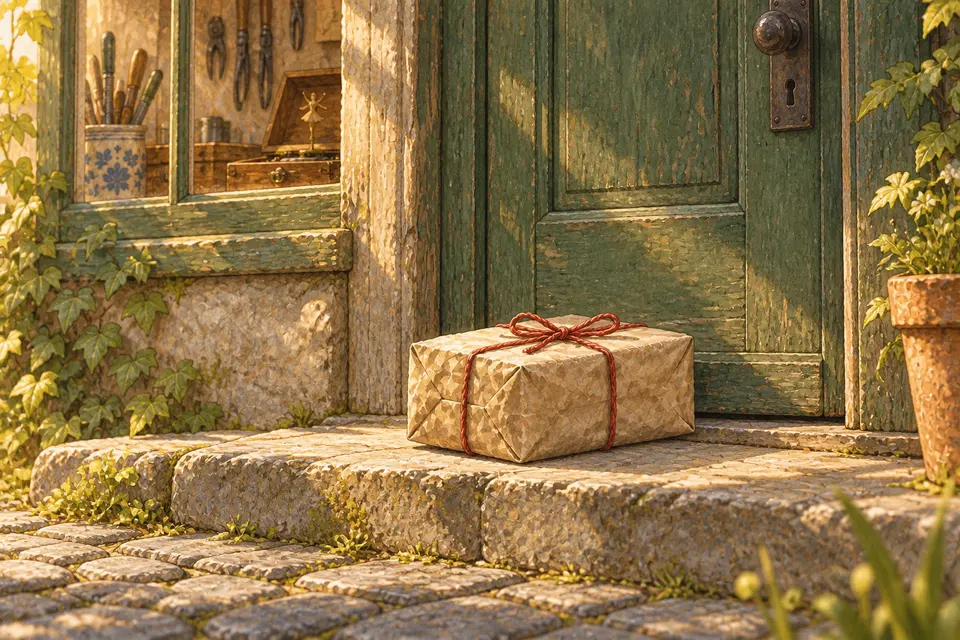
A brown-paper parcel waited outside Mara’s repair shop with no return address, and Mara wondered if its sender was afraid to be found.
2. Settle into the time and place
Move to the place as the narration takes us there.
From Pictures & Sequences and Sound & Voice
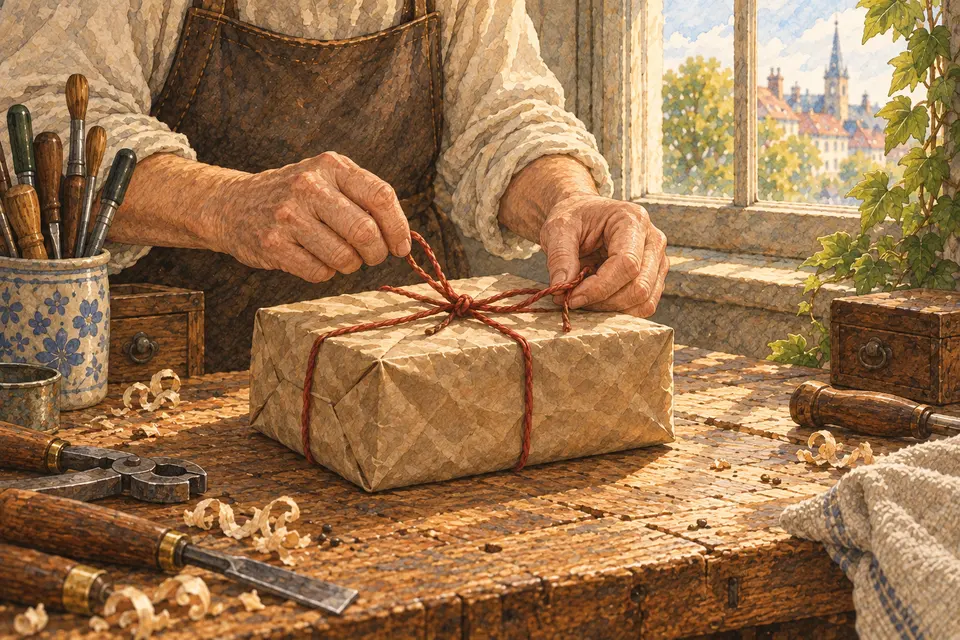
When Mara opened the shop at nine, she carried it to her workbench and untied the string.
3. Hold on the telling detail
Let the listener look long enough to notice the detail.
From Pictures & Sequences and Sound & Voice
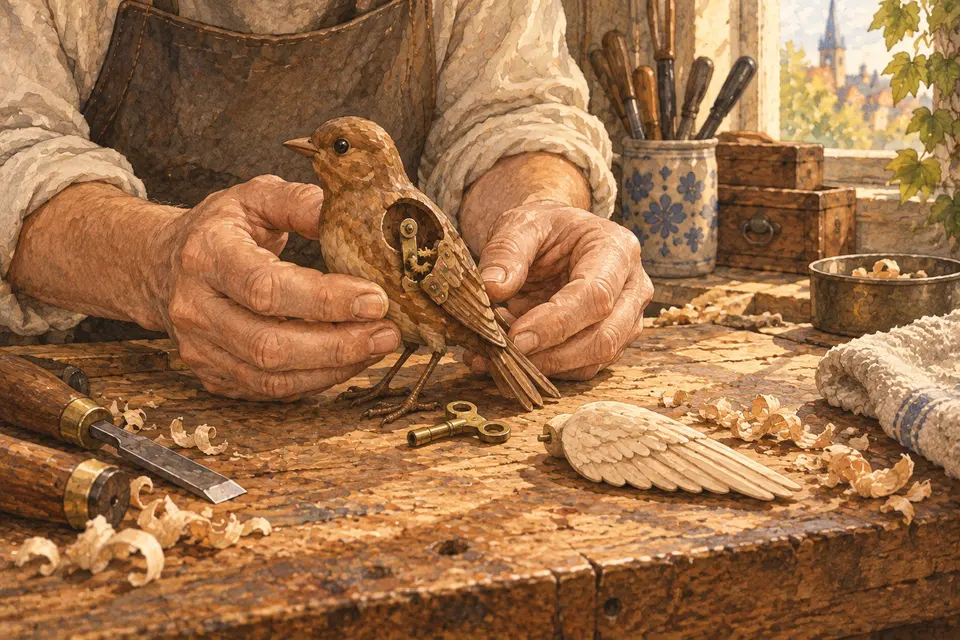
The wooden bird inside had its left wing missing, and Mara decided Kit’s note—“Can it fly again?”—deserved a careful answer.
4. Give the choice its moment
A quiet decision deserves enough time to register.
From Pictures & Sequences and Sound & Voice
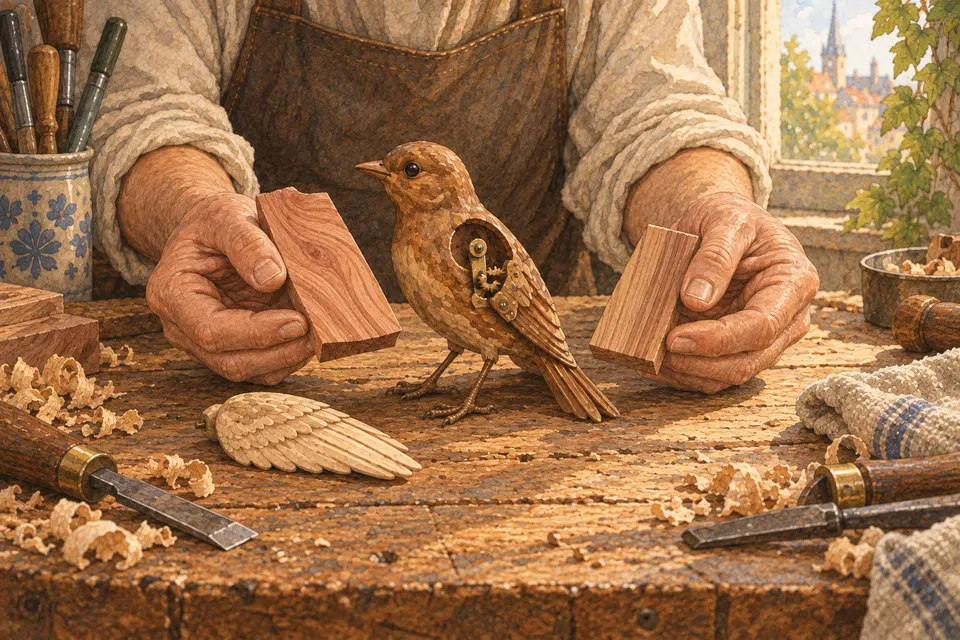
Mara chose a cedar scrap because its grain ran like the feathers on the bird’s good wing.
5. Let the feeling unfold
Keep the picture with the action—and leave room for its reply.
From Pictures & Sequences and Sound & Voice
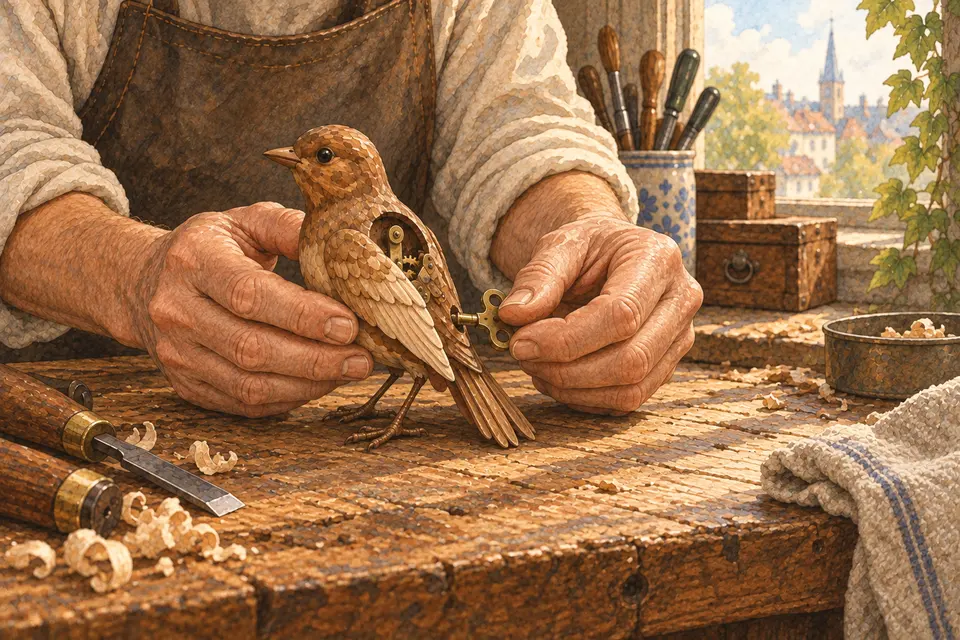
The next morning, she fitted the new wing and wound the small brass key beneath the bird’s tail.
6. Let the ending linger
Let the final image remain after the last words.
From Pictures & Sequences and Sound & Voice
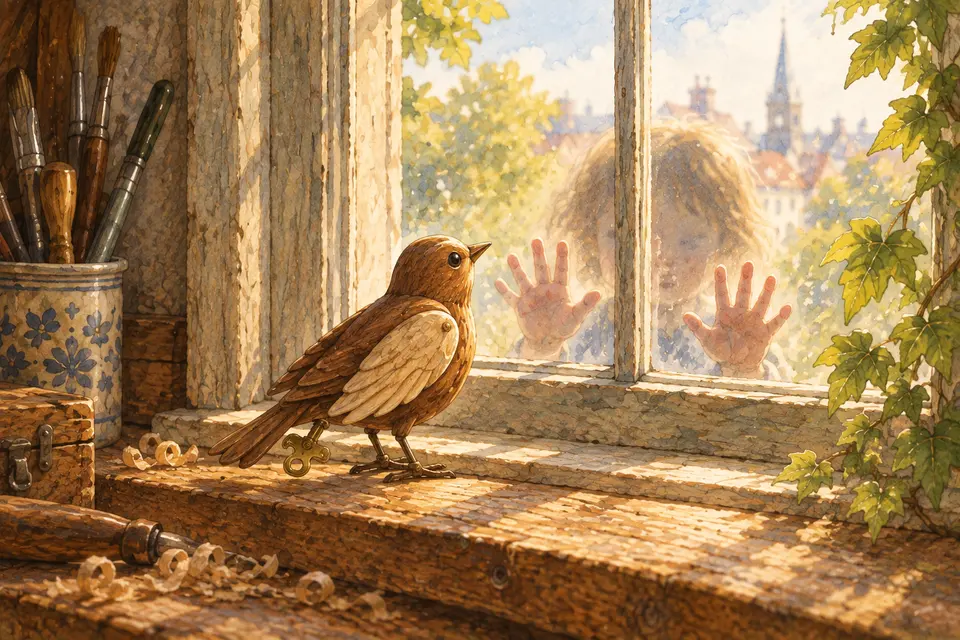
When the bird chirped and a child outside pressed both hands to the glass, Mara knew the sender had come back, so she opened the door.
From your plan to a finished slideshow
Gather your files in one story folder
Keep six chosen pictures in story order, named picture-01.jpg through picture-06.jpg, or retain their actual file format, such as .png or .webp. Add the complete audio from Sound & Voice, such as narration-final.wav or narration-final.mp3, and Download slideshow handoff to save the text assembly brief in the same folder. Keep your source credits there too. The brief contains instructions, not the picture or audio files; supply those separately.
Assemble the pictures and narration
Open the files in a video editor, give them to a human editor, or use an AI tool that can accept your files and assemble video. A text-only assistant can help with instructions but cannot deliver a video unless it has the tools to make one. Use the assembly brief to match each picture to its spoken passage. In an editor, put the finished audio on the timeline, listen for each passage, and place its picture change there. The six pictures do not need equal durations. Keep them still, preserve the finished sound mix without duplicate effects, and hold the last picture for about four seconds after the audio ends. If a match or file is missing, ask or supply it before continuing; do not invent a replacement.
Review a first cut
Make or request a first cut before the final export. Watch it from start to finish with sound on. Check that each picture arrives with its passage, every word is clear, and the ending has time to rest. Move any early or late picture change and watch again. Check any captions and carry the supplied credits and creation notes into the finished piece. Ask for missing attribution; do not invent it.
Export and keep a copy
Save the editable video project and export a finished video, such as story-final.mp4. Open the exported file and check its pictures, sound, ending, and credits. Keep it with the source pictures, finished audio, original takes, playbook, and assembly brief so you can make another version later. Record the project and video filenames and any changes in the review notes below. Story Studio keeps your text plan; it does not upload these files or render the video.
Optional: use the DIY movie assembly guide for tested FFmpeg commands and a worked example. Opening the guide does not transfer your draft or media; take your files and assembly brief separately.
Watch, adjust, and keep a copy
The sender · Guided walk-through
Discover the sender’s film plan, one part at a time
Consider each moment, then reveal it. Watch how the story takes shape.
The parcel with no return address
Your film plan in six parts
1. Open on the change
Begin with Kit leaving the parcel. Where should that picture meet the first words?
From Pictures & Sequences and Sound & Voice
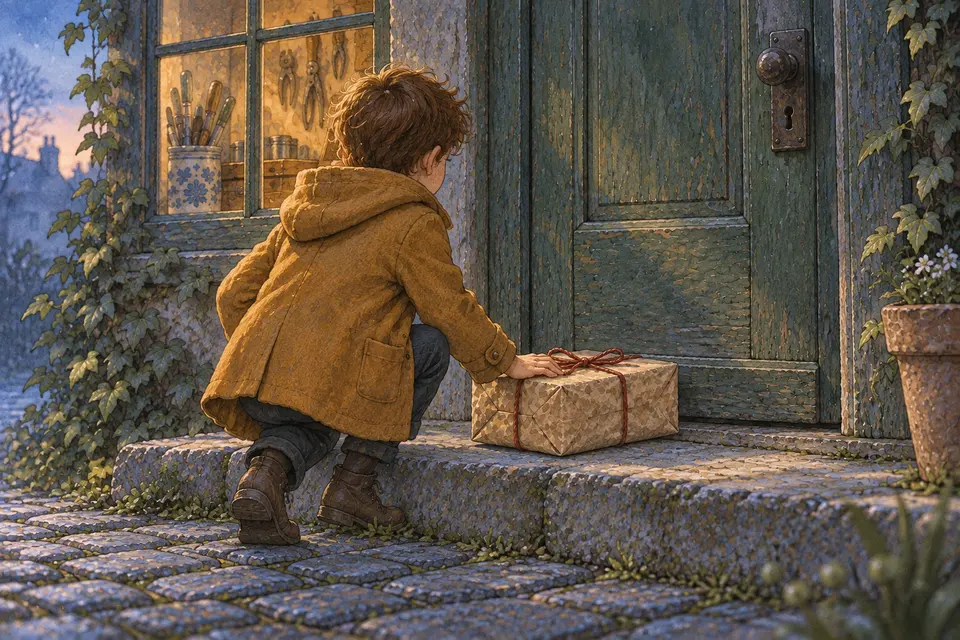
Before dawn, Kit left a brown-paper parcel outside Mara’s repair shop with no return address, because asking face-to-face felt impossible.
2. Settle into the time and place
The story moves across the street. Let the new picture establish Kit’s distance from the shop.
From Pictures & Sequences and Sound & Voice
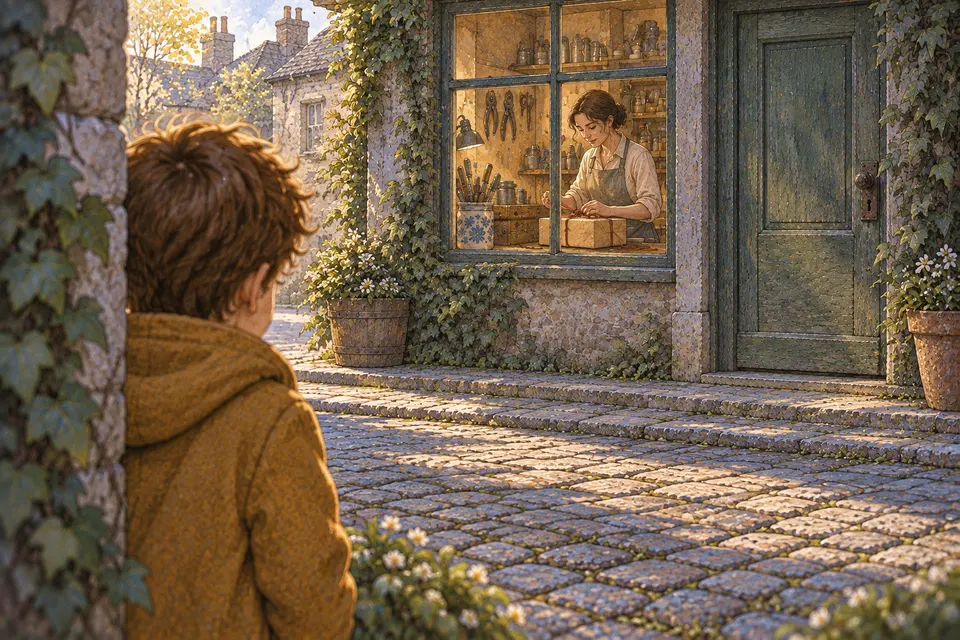
At nine, from across the street, Kit watched Mara carry it to her workbench and untie the string.
3. Hold on the telling detail
The broken bird and the note carry the question. How long should we stay with that detail?
From Pictures & Sequences and Sound & Voice
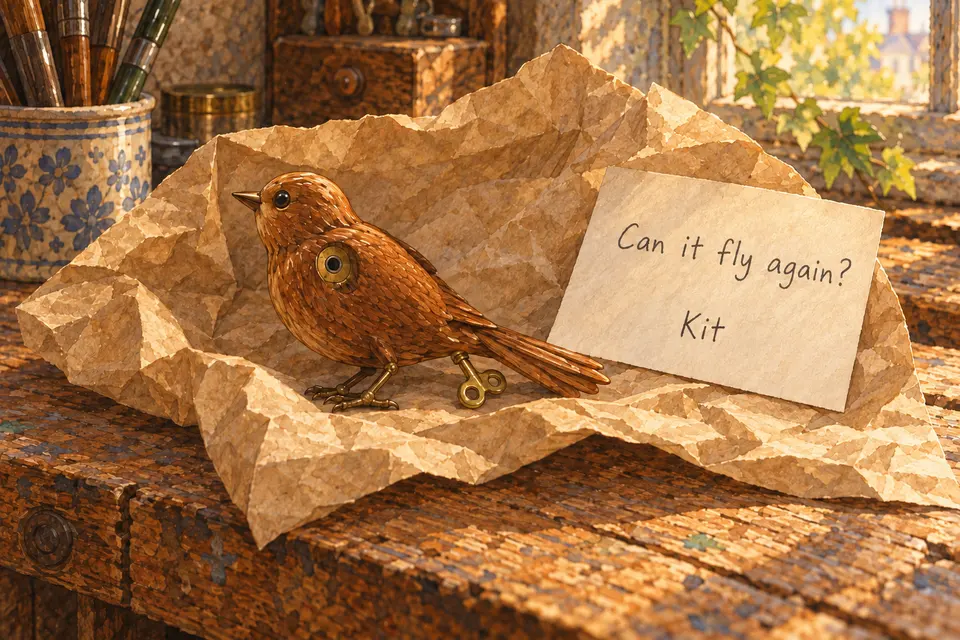
The box held Kit’s wooden bird with its left wing missing, and a note with Kit’s name beneath the only question Kit could manage: “Can it fly again?”
4. Give the choice its moment
Kit watches Mara choose cedar. Give that act of care time to register before moving on.
From Pictures & Sequences and Sound & Voice
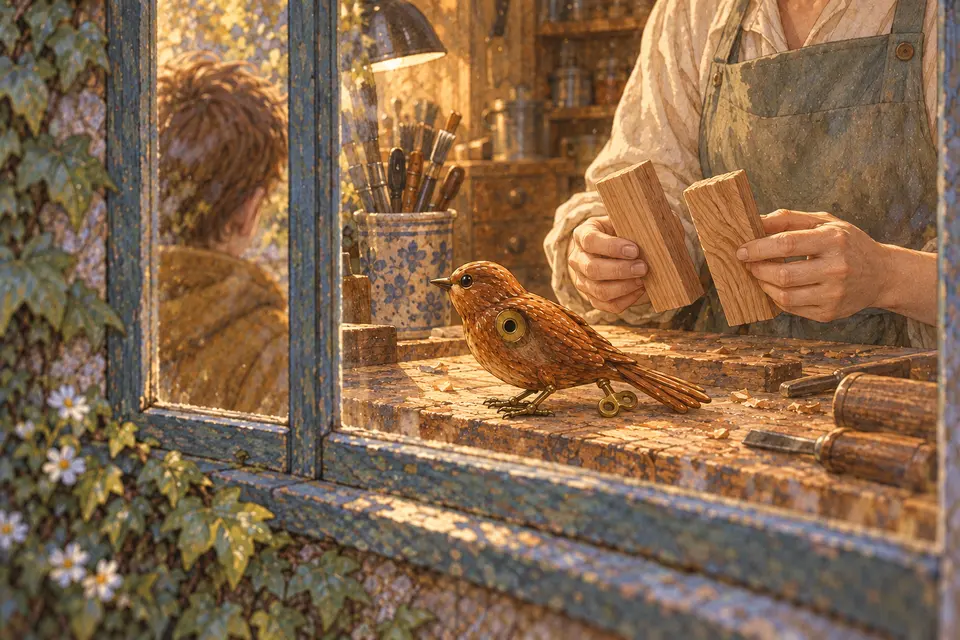
Through the window, Kit saw Mara select a cedar scrap whose grain matched the feathers on the good wing.
5. Let the feeling unfold
Keep the winding of the key and the bird’s reply together. Which picture should hold through the cue?
From Pictures & Sequences and Sound & Voice
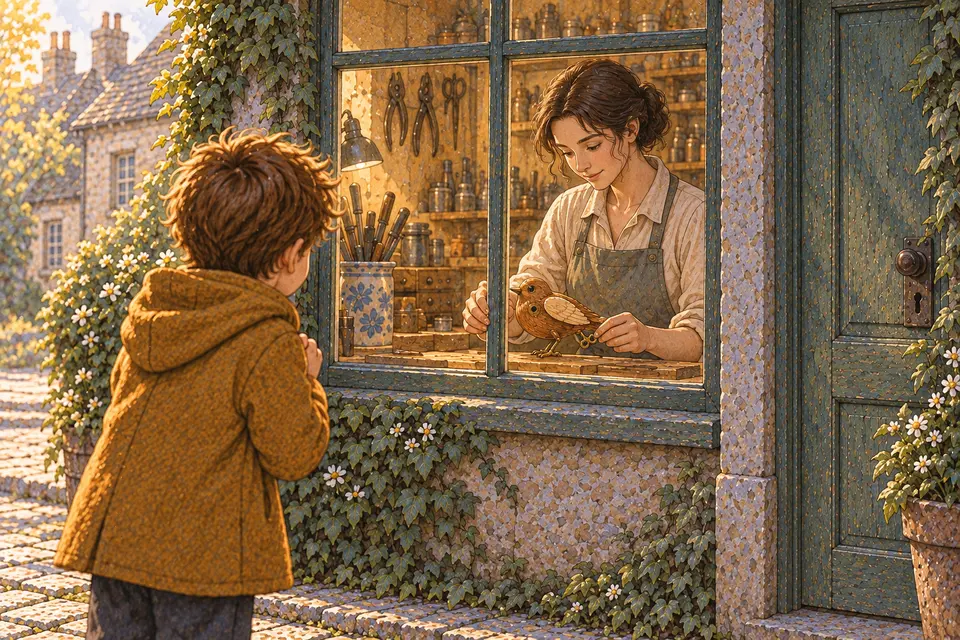
The next morning, Kit returned as Mara fitted the new wing and wound the small brass key beneath the bird’s tail.
6. Let the ending linger
Let the open door be the final image. What might the viewer notice once the voice has stopped?
From Pictures & Sequences and Sound & Voice
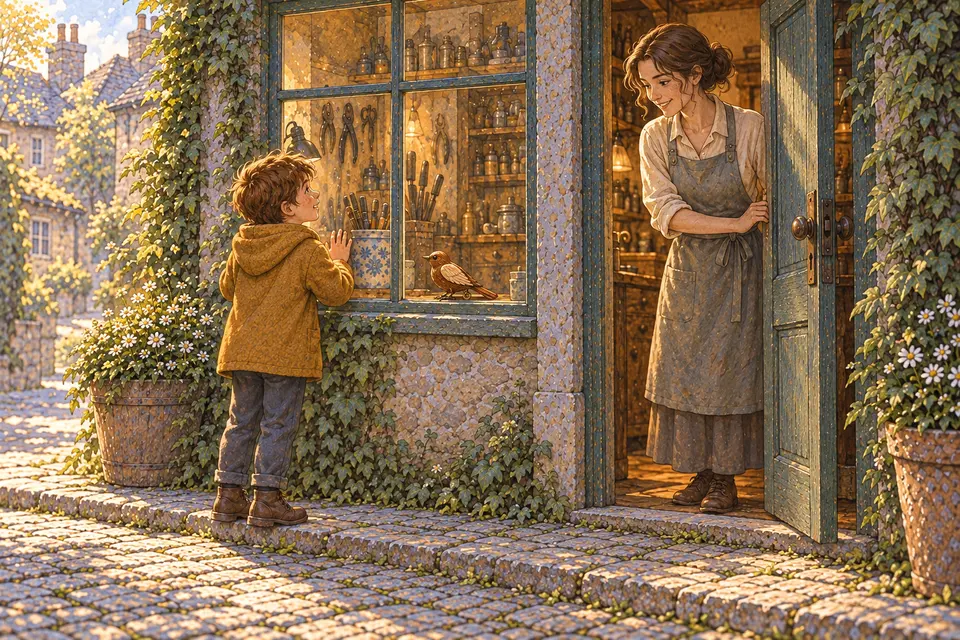
The bird chirped; relief carried Kit’s hands to the glass, and Mara opened the door.
From your plan to a finished slideshow
Gather your files in one story folder
Keep six chosen pictures in story order, named picture-01.jpg through picture-06.jpg, or retain their actual file format, such as .png or .webp. Add the complete audio from Sound & Voice, such as narration-final.wav or narration-final.mp3, and Download slideshow handoff to save the text assembly brief in the same folder. Keep your source credits there too. The brief contains instructions, not the picture or audio files; supply those separately.
Assemble the pictures and narration
Open the files in a video editor, give them to a human editor, or use an AI tool that can accept your files and assemble video. A text-only assistant can help with instructions but cannot deliver a video unless it has the tools to make one. Use the assembly brief to match each picture to its spoken passage. In an editor, put the finished audio on the timeline, listen for each passage, and place its picture change there. The six pictures do not need equal durations. Keep them still, preserve the finished sound mix without duplicate effects, and hold the last picture for about four seconds after the audio ends. If a match or file is missing, ask or supply it before continuing; do not invent a replacement.
Review a first cut
Make or request a first cut before the final export. Watch it from start to finish with sound on. Check that each picture arrives with its passage, every word is clear, and the ending has time to rest. Move any early or late picture change and watch again. Check any captions and carry the supplied credits and creation notes into the finished piece. Ask for missing attribution; do not invent it.
Export and keep a copy
Save the editable video project and export a finished video, such as story-final.mp4. Open the exported file and check its pictures, sound, ending, and credits. Keep it with the source pictures, finished audio, original takes, playbook, and assembly brief so you can make another version later. Record the project and video filenames and any changes in the review notes below. Story Studio keeps your text plan; it does not upload these files or render the video.
Optional: use the DIY movie assembly guide for tested FFmpeg commands and a worked example. Opening the guide does not transfer your draft or media; take your files and assembly brief separately.
Watch, adjust, and keep a copy
Your Turn · Make it your own
Bring your story together
Work in any order. Return to Example or Walk-Through whenever you need them; your work stays here.
Your story
Your film plan in six parts
1. Open on the change
Begin with the picture the first words need.
From Pictures & Sequences and Sound & Voice
Your words for this part will appear here.
Return to your words2. Settle into the time and place
Move to the place as the narration takes us there.
From Pictures & Sequences and Sound & Voice
Your words for this part will appear here.
Return to your words3. Hold on the telling detail
Let the listener look long enough to notice the detail.
From Pictures & Sequences and Sound & Voice
Your words for this part will appear here.
Return to your words4. Give the choice its moment
A quiet decision deserves enough time to register.
From Pictures & Sequences and Sound & Voice
Your words for this part will appear here.
Return to your words5. Let the feeling unfold
Keep the picture with the action—and leave room for its reply.
From Pictures & Sequences and Sound & Voice
Your words for this part will appear here.
Return to your words6. Let the ending linger
Let the final image remain after the last words.
From Pictures & Sequences and Sound & Voice
Your words for this part will appear here.
Return to your wordsFrom your plan to a finished slideshow
Gather your files in one story folder
Keep six chosen pictures in story order, named picture-01.jpg through picture-06.jpg, or retain their actual file format, such as .png or .webp. Add the complete audio from Sound & Voice, such as narration-final.wav or narration-final.mp3, and Download slideshow handoff to save the text assembly brief in the same folder. Keep your source credits there too. The brief contains instructions, not the picture or audio files; supply those separately.
Assemble the pictures and narration
Open the files in a video editor, give them to a human editor, or use an AI tool that can accept your files and assemble video. A text-only assistant can help with instructions but cannot deliver a video unless it has the tools to make one. Use the assembly brief to match each picture to its spoken passage. In an editor, put the finished audio on the timeline, listen for each passage, and place its picture change there. The six pictures do not need equal durations. Keep them still, preserve the finished sound mix without duplicate effects, and hold the last picture for about four seconds after the audio ends. If a match or file is missing, ask or supply it before continuing; do not invent a replacement.
Review a first cut
Make or request a first cut before the final export. Watch it from start to finish with sound on. Check that each picture arrives with its passage, every word is clear, and the ending has time to rest. Move any early or late picture change and watch again. Check any captions and carry the supplied credits and creation notes into the finished piece. Ask for missing attribution; do not invent it.
Export and keep a copy
Save the editable video project and export a finished video, such as story-final.mp4. Open the exported file and check its pictures, sound, ending, and credits. Keep it with the source pictures, finished audio, original takes, playbook, and assembly brief so you can make another version later. Record the project and video filenames and any changes in the review notes below. Story Studio keeps your text plan; it does not upload these files or render the video.
Optional: use the DIY movie assembly guide for tested FFmpeg commands and a worked example. Opening the guide does not transfer your draft or media; take your files and assembly brief separately.